QR code check-in
A QR code queue system that works for everyone who walks in
A QR code only helps if it works for the person in front of it. Ours opens the right queue, takes under 30 seconds to join, and loads on a weak signal.
No app to download · Live in 10 minutes · Free tier
What one scan does
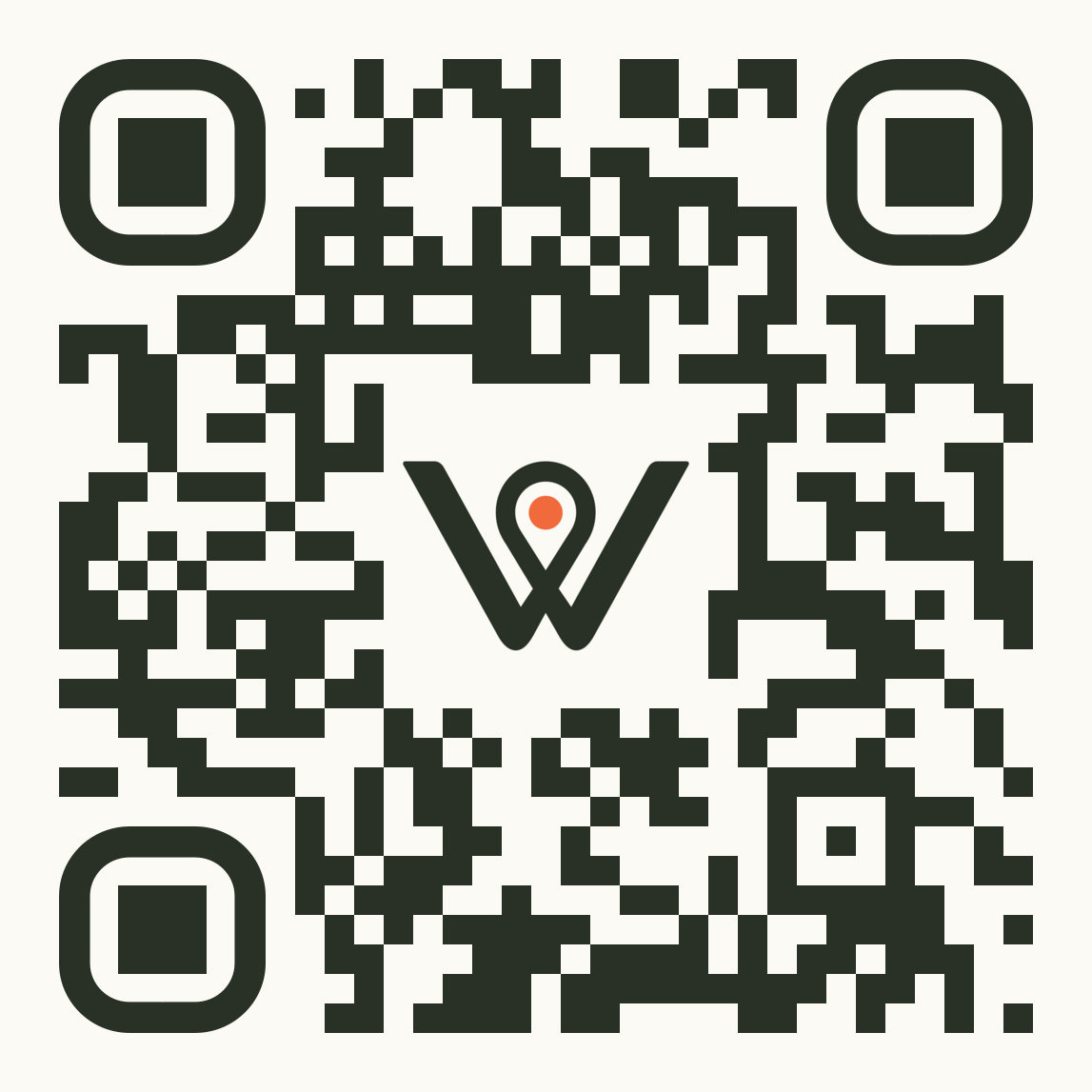
Scan to join the queue
Opens this queue, not a menu
Name, number, service
Loads on one bar of signal
Staff add anyone who can't scan
Saturday, 11:40. A customer scans the code by the door, picks "Pickup" and is in line before reaching the counter. The person behind them would rather ask, so staff add them to the same queue.
Sample queue QR code and what one scan does
The basics
What is a QR code queue?
A QR code queue lets customers join your line by scanning a printed code with their phone. A short form opens in the browser, with no app or account needed, and they're in. A QR code queue system is the software that runs it, from the code on your door to the message that calls each person back. In Wait Wherever, it's one part of the queue management system.
One code for each queue
Print each queue's code for the spot where its customers arrive. A scan at the pickup desk opens the pickup queue.
The counter keeps serving
Customers put themselves in line, so whoever's at the counter can keep serving instead of stopping to add each new arrival.
See how people joined
Each visit records whether someone joined by QR code, by link or at the desk. It's in your CSV export.
The first minute
Where a QR code fails at the door
A QR code queue system has about a minute to prove itself. If the form drags on, the page won't load, or the customer won't use it, people walk up to the desk anyway. Here's how Wait Wherever handles each problem.
When a scan goes wrong
Five problems, and the fix for each
- The form asks for too much. Name, mobile number and service, plus consent to queue messages. No account, no password, under 30 seconds.
- The page won't load at the door. The join page is kept light, so it opens on a weak signal and on older, low-cost phones.
- Someone would rather not scan. Staff add them from the dashboard, into the same line, in the order they arrived.
- The same person joins twice. A nervous second scan doesn't add them again. Repeat and automated entries are blocked.
- Someone scans after closing, or when you're full. They see a clear "closed" or "full" message, based on the hours and cap you set for each queue.
How it works
How a QR code queue management system works
Four steps from a printed code to a customer at your counter.
Download your queue QR code
Create a queue, add its services and hours, and it comes with its own QR code. Download it and print it.
Put it where people arrive
By the door, on the counter or at the desk. Each queue also has a link for your website or social profile.
Customers scan and join
Their phone camera opens the join page. A name, a mobile number and the service they need, and they're in line.
They wait, then get called back
A private page shows their place and an approximate wait. WhatsApp or SMS tells them when their turn is close, and when you're ready.
Continue exploring
What happens after the scan
The QR code gets people into the queue. These pages cover what happens next.
FAQ
Frequently asked questions
Setting up the code and running QR check-in day to day.
How do I create a QR code for my queue?
You don't need a separate QR code generator. Every queue you create in Wait Wherever comes with its own QR code and link. Download the code, print it, and put it where people arrive.
Can customers scan the code without a special app?
Yes. The built-in camera on most smartphones reads QR codes. Pointing it at your code opens the join page in the phone's browser, with nothing to install.
Is it safe for customers to scan a QR code?
Fake QR stickers placed over real ones are a known scam, so a few precautions are worth taking. Put your code where staff can see it, and check it now and then. The Wait Wherever join page asks for a name, a mobile number and the service, never a password or card details. A page asking for those isn't yours.
Where should I put the QR code?
Where people stop first: the entrance, the counter, or the spot where a line usually forms. Put it at eye level, big enough to scan from a step away, with a few words saying what it's for, like "Scan to join the pickup queue." If you run more than one queue, give each one its own sign.
Do I need a tablet or kiosk at the door?
No. The printed code does the job a check-in kiosk would. People scan it with the phone in their pocket, and your staff run the queue from a phone, tablet or computer they already have.
What happens to the phone numbers customers enter?
Wait Wherever uses them to send that customer's queue messages. They're never shown to other customers, only people on your team with access can see them, and you can delete a customer's record when you need to.
Get started
Your QR code queue system, ready in about ten minutes
Create a queue, add your services and hours, and print its code. There's nothing to install, for you or your customers, and a free tier to start on.